Tuning Diagnostic Queries

Most of the time when we talk about tuning, it’s related to improving the performance of a production workload. Maybe (hopefully) we’ve gone as far as tuning more “hidden” code like stored procedures, triggers, and the black boxes that are user-defined functions. But what about the other queries we run against our production servers?

Maybe we use 3rd-party management/monitoring software, or in-built tools like Activity Monitor or Management Data Warehouse (aka Data Collector) that periodically checks up on our servers. In these cases, if we identify these systems as a performance problem, we’re pretty much stuck with either reducing the polling frequency, abandoning the use of the system entirely, or pestering the vendor until the problem is fixed. That’s pretty straight-forward.

There’s another class of queries we run against our production servers, though: diagnostic queries. If a server is in performance trouble, or we need to go troubleshooting for blocking, or even if we’re proactively searching for issues, we automatically whip out our trusty folder of scripts and start running queries to start to narrow things down; queries that could potentially make the problem worse by either adding extra load to the server, or even adding unnecessary time to the troubleshooting process.

It’s impossible, of course, to eliminate the need for the database engine to do some processing to return the results of our queries (the observer effect), but how much impact are our queries having on the server? Maybe in the grand scheme of things, not a lot. During a troubleshooting session, however, things are very different: people are anxious for answers, the problem needs to be solved now, and we’re working as hard as we can to not only fix the problem, but above all else, to not make things worse.

Now, I’m going to give an example, and I have to apologize in advance to Paul Randal and/or Glenn Barry because I’m about to single them out. Sorry, guys.

A good while back, Paul posted an excellent diagnostic query to analyze wait stats (note: I never saw Glenn’s original query), and I had stolen borrowed used it to troubleshoot some issues in the environment I work in. Of course, I played around with it before that, to see it was indeed a useful script to keep around. But when I ran it against the production server in peril, I was floored because it took so long to return the results I needed to see. I was also puzzled that after I reset the wait stats and then ran the query a few seconds later, the results… just didn’t look right for what I was expecting. What was going on? It was just a relatively simple SELECT statement from a DMV, which is usually pretty quick. I turned on STATISTICS IO and STATISTICS TIME and ran the query again:

SQL Server parse and compile time: 
   CPU time = 0 ms, elapsed time = 0 ms.

(16 row(s) affected)
Table 'Worktable'. Scan count 7, logical reads 4664, physical reads 0, read-ahead reads 0, lob logical reads 0, lob physical reads 0, lob read-ahead reads 0.

 SQL Server Execution Times:
   CPU time = 812 ms,  elapsed time = 3469 ms.

Shock and/or awe. I think we found the problem! The diagnostic query was consuming a tremendous amount of resources just to tell us that the system was having its resources consumed tremendously.

Well we’ve got to do something about that, haven’t we? Ultimately the query got pulled apart, and using a pre-computation approach involving table and scalar variables, this is where it ended up:

SQL Server parse and compile time: 
   CPU time = 16 ms, elapsed time = 22 ms.

 SQL Server Execution Times:
   CPU time = 0 ms,  elapsed time = 0 ms.
Table '#58739F6F'. Scan count 0, logical reads 92, physical reads 0, read-ahead reads 0, lob logical reads 0, lob physical reads 0, lob read-ahead reads 0.
Table 'Worktable'. Scan count 1, logical reads 192, physical reads 0, read-ahead reads 0, lob logical reads 0, lob physical reads 0, lob read-ahead reads 0.

 SQL Server Execution Times:
   CPU time = 15 ms,  elapsed time = 3 ms.
Table '#58739F6F'. Scan count 1, logical reads 1, physical reads 0, read-ahead reads 0, lob logical reads 0, lob physical reads 0, lob read-ahead reads 0.

 SQL Server Execution Times:
   CPU time = 0 ms,  elapsed time = 0 ms.

 SQL Server Execution Times:
   CPU time = 0 ms,  elapsed time = 0 ms.

(16 row(s) affected)
Table '#58739F6F'. Scan count 1, logical reads 1, physical reads 0, read-ahead reads 0, lob logical reads 0, lob physical reads 0, lob read-ahead reads 0.

 SQL Server Execution Times:
   CPU time = 0 ms,  elapsed time = 1 ms.

Much better. (You can find the modified script on the Scripts & Code Resources Page. Note that it doesn’t do exactly the same thing as the original.)

So what can we learn from this?

  • While DMVs are usually fast, doing further analysis on the results can be expensive, depending on what we do, of course.
  • Test diagnostic queries for performance just as much as for functionality.
  • Fully test diagnostic queries long before they get thrust into the heat of battle. This is sword-sharpening for DBAs.
  • For the scripts that just… perform poorly… and there’s nothing more we can do about it, add comments to the script body that say as much. Whoever is about to run the script should be made aware that the query will take some time to finish. The warning will prevent situations like worrying about whether or not it’s working, or it even may alert the person to not run the script at all and use a different/similar method instead.
Registered Servers and Central Management Server: Setup

Edit 2013-10-14: This post is now available in video form.

Whether you manage one SQL Server instance or hundreds, you need to have a way to keep track of them all.

Just like best-practices when it comes to security, it would be nice to create logical groups of instances and manage them based on their group membership. Perhaps also inspect, or perform actions against groups of instances:

  • Run queries, including management-type activities like creating or running jobs
  • Check if the settings match a pre-determined configuration, and if not, fix the settings

While there isn’t really an inbuilt group-based way to manage these kinds of things, there are two out-of-the-box solutions to mimic many of the advantages, and which help you accomplish these tasks. These solutions are, of course, Registered Servers, and Central Management Server.

In terms of requirements, Registered Servers was available starting with the Management Studio packaged with SQL Server 2005, and support for registering an instance as a Central Management Server was added in SQL Server 2008. I don’t believe there’s any limitation on version of the instances you can register within either system (and I can’t find it in the documentation); off the top of my head I would say SQL Server 2000 and higher sounds pretty safe. From personal experience, 2005 and higher definitely works.

The UI to access both of these features is through the View | Registered Servers menu item in Management Studio. While it might be a bit strange that both of them are contained in one UI, we’ll see in a second that that’s actually an advantage, because it’s likely you’ll need to use both in your environment.

What is a Registered Server?

While Registered Servers and Central Management Server have different names, both ultimately do the same thing: store a user-defined hierarchy of SQL Server instance connection strings. In other words, a tree view that lists and categorizes your instances. The behind-the-scenes way this is accomplished is very different between the two systems, and this means there are advantages and disadvantages to each.

Although both names contain the word “servers,” what we’re actually dealing with are instances of SQL Server. I guess it was a design decision by the SQL Server team to call them Registered Servers instead of Registered Instances. It’s also a bit confusing because Registered Servers refers to one user-defined hierarchy, while Central Management Servers (note the plural) would refer to multiple hierarchies.

Differences

The main difference is that a Registered Servers list is only visible to one Windows user, while a Central Management Server list is publicly available to anyone with enough permissions to view the list.

The best way to show all the differences is probably just to put them in a table, so let’s do that:

Registered Servers Central Management Server
Storage Method XML file in Windows roaming profile msdb database
List Visibility Current user only Everyone who is authorized (view nothing, view all, edit all)
Security of Instance List Based on Windows user context Managed by SQL Server permissions, and msdb database roles
Types of Instances Database engine, SSAS, SSIS, SSRS Database engine only
Connection String Authentication Windows Authentication and SQL Server authentication Windows Authentication only

So now you can see the big tradeoffs between the two systems, and why I said it’s likely you’ll need to use both. Central Management Servers should in theory be able to support all types of instances, but sadly, it just isn’t implemented for some reason. My fingers are crossed that it’s implemented in the next version.

Setup

Since the storage method of the two system is very different, there are very different concerns when it comes to setting them up. Really there isn’t much to Registered Servers because of the fact that the list is isolated to a single user. With a Central Management Server, however, there are many more parts in play — the price we have to pay for power and flexibility — and so there are many more guidelines.

Briefly, the way I like to set things up is as follows:

  • Use Registered Servers for instances that I keep on my local machine (for development, or playing around) that aren’t usually accessible from the rest of the network, and for SSAS/SSIS/SSRS because there’s currently no other choice.
  • Set up a dedicated SQL Server instance just to be the Central Management Server instance, and register all publicly-available instances within a given domain. (One Central Management Server instance per domain is a good idea, particularly if that boundary separates development and production, for example.) The instance doesn’t have to be powerful in terms of either CPU or memory, but it does need to be very reliable because we will be using it to manage our servers in good times and bad. Even Express Edition can be used to set up a Central Management Server, but for obvious reasons, you will want to take regular backups of at least the msdb database by some means.
  • I recommend installing a Central Management Server instance on a separate management machine (again, probably one per domain), and not on a production machine. (I wrote a bit about this in the comments on my answer here). Definitely do not register a Central Management Server on an existing production instance — not only is that a bad practice in terms of separation of concerns for many reasons, but there’s also a limitation that a Central Management Server instance cannot appear in the hierarchy within “itself” as would happen in this case.
  • (If necessary) Configure security to determine who can view, and who can edit a Central Management Server list. As eluded to in the table, this is accomplished by assigning membership to the msdb fixed database roles ServerGroupReaderRole and ServerGroupAdministratorRole (MSDN page) as appropriate. It may also be desirable to use multiple Central Management Server instances to separate tiers of registered servers, such as development, test/QA, and production, because there isn’t any other way to control instance-level visibility besides the aforementioned roles.

Organizing the List

One of the great features of both Registered Servers and Central Management Server is that registered instances can appear in the hierarchy multiple times. Why is that great? Because it allows us to organize the instances in multiple ways within the same hierarchy.

We may want to group our instances together by:

  • Version and/or edition
  • Criticality (24/7, business working day, etc.)
  • Business area or department (development, test/QA, production, etc.)

And I’m sure you can think of a few others for your environment as well.

In fact, we may wish to categorize by more than one of these things for frequently-used parts of the hierarchy. When arranging the list for maximum usefulness, think about how to organize it such that if a single group is selected in the tree, changes would happen to all the instances within that group folder.

If you’re setting this up for the first time, and assuming there aren’t too many instances in play, it may just be a good idea to start with a relatively flat hierarchy, and build the groups as you find they’re needed. The reason why this strategy isn’t a good idea with many servers is because the ability to quickly move servers between groups in the UI is extremely limited. For a Central Management Server, the system tables in msdb could probably be edited directly, but I can’t say I’d recommend that, and I haven’t tried it myself either.


In a future post (likely a video demo), we’ll dive into using and leveraging Registered Servers and Central Management Server to their full potential through the UI.

To leverage Central Management Servers externally, such as through PowerShell or an external application, we can run queries against the following two views in msdb: dbo.sysmanagement_shared_registered_servers and dbo.sysmanagement_shared_server_groups, or use the various stored procedures to manage the list.

How much overhead do CHECK constraints have?

When designing new database structures, I feel it’s really important to make sure that the data goes into the new tables as cleanly as possible. Doing this early on helps prevent bugs from creeping into the system as it’s developed. And preventing bugs as early as possible in the development cycle is almost certainly the most cost-efficient strategy — cleaning up bad data later on is extremely expensive, time consuming, and frustrating.

One of the tools that can be used to reject bad data values going into tables are CHECK constraints. This type of constraint is meant to be used to validate a single row based on a predicate that’s a function of any combination of the table columns in that row. (CHECK constraints can be used for things beyond this definition… but doesn’t mean they should be.)

In this post, I’m not going to address any more of the advantages of constraining data values. What I do want to investigate is performance.

The extra logic to do this validation necessarily has additional processing cost associated with it. The question is: how much extra? Does it really make a difference? What kind of general guidelines can be established for performance purposes?

The Setup

I decided to run two series of tests: one with a very narrow table (3 columns), and one with a wide table (21 columns). We’ll INSERT a bunch of test data into each of the tables. A baseline would be established for each test, where the tables have no constraints. Then, different constraints would be added, and hopefully we’ll be able to see a difference in the load times.

Here is an abridged version of the table creation script (note: all scripts are available to download in full at the bottom of this post):

-- Narrow, no constraints
CREATE TABLE [dbo].[NarrowWithoutConstraints]
(
	Id int NOT NULL IDENTITY(1, 1) PRIMARY KEY CLUSTERED,
	Col1 int NOT NULL,
	Col2 varchar(10) NOT NULL
);

-- Wide, no constraints
CREATE TABLE [dbo].[WideWithoutConstraints]
(
	Id int NOT NULL IDENTITY(1, 1) PRIMARY KEY CLUSTERED,
	Col10 int NOT NULL,
	...
	Col19 int NOT NULL,
	Col20 varchar(10) NOT NULL,
	...
	Col29 varchar(10) NOT NULL,
);

-- Narrow, simple constraints
CREATE TABLE [dbo].[NarrowWithConstraints1]
(
	Id int NOT NULL IDENTITY(1, 1) PRIMARY KEY CLUSTERED,
	Col1 int NOT NULL CHECK (Col1 >= 0),
	Col2 varchar(10) NOT NULL CHECK (LEN(Col2) > 0)
);

-- Wide, simple constraints
CREATE TABLE [dbo].[WideWithConstraints1]
(
	Id int NOT NULL IDENTITY(1, 1) PRIMARY KEY CLUSTERED,
	Col10 int NOT NULL CHECK (Col10 >= 0),
	...
	Col19 int NOT NULL CHECK (Col19 >= 0),
	Col20 varchar(10) NOT NULL CHECK (LEN(Col20) > 0),
	...
	Col29 varchar(10) NOT NULL CHECK (LEN(Col29) > 0)
);

-- Narrow, complex constraints
CREATE TABLE [dbo].[NarrowWithConstraints2]
(
	Id int NOT NULL IDENTITY(1, 1) PRIMARY KEY CLUSTERED,
	Col1 int NOT NULL
		CHECK ((Col1 >= 0) AND (Col1 > -9999) AND (Col1 < 5000) AND (Col1 < 9999)),
	Col2 varchar(10) NOT NULL
		CHECK ((LEN(Col2) > 0) AND (DATALENGTH(Col2) = DATALENGTH(LTRIM(RTRIM(Col2)))))
);

-- Wide, complex constraints
CREATE TABLE [dbo].[WideWithConstraints2]
(
	Id int NOT NULL IDENTITY(1, 1) PRIMARY KEY CLUSTERED,
	Col10 int NOT NULL
		CHECK ((Col10 >= 0) AND (Col10 > -9999) AND (Col10 < 5000) AND (Col10 < 9999)),
	...
	Col19 int NOT NULL
		CHECK ((Col19 >= 0) AND (Col19 > -9999) AND (Col19 < 5000) AND (Col19 < 9999)),
	Col20 varchar(10) NOT NULL
		CHECK ((LEN(Col20) > 0) AND (DATALENGTH(Col20) = DATALENGTH(LTRIM(RTRIM(Col20))))),
	...
	Col29 varchar(10) NOT NULL
		CHECK ((LEN(Col29) > 0) AND (DATALENGTH(Col29) = DATALENGTH(LTRIM(RTRIM(Col29))))),
);

-- Narrow, many complex constraints
CREATE TABLE [dbo].[NarrowWithConstraints3]
(
	Id int NOT NULL IDENTITY(1, 1) PRIMARY KEY CLUSTERED,
	Col1 int NOT NULL
		CHECK ((Col1 >= 0) AND (Col1 > -9999) AND (Col1 < 5000) AND (Col1 < 9999)),
	Col2 varchar(10) NOT NULL
		CHECK ((LEN(Col2) > 0) AND (DATALENGTH(Col2) = DATALENGTH(LTRIM(RTRIM(Col2)))))
);

ALTER TABLE [dbo].[NarrowWithConstraints3]
	ADD CHECK ((Col1 > -1) AND (Col1 > -9998) AND (Col1 < 5001) AND (Col1 < 9998));

...

ALTER TABLE [dbo].[NarrowWithConstraints3]
	ADD CHECK ((Col1 > -9) AND (Col1 > -9990) AND (Col1 < 5009) AND (Col1 < 9990));

ALTER TABLE [dbo].[NarrowWithConstraints3]
	ADD CHECK ((LEN(Col2) > -1) AND ((DATALENGTH(Col2) + 1) = (DATALENGTH(LTRIM(RTRIM(Col2))) + 1)));

...

ALTER TABLE [dbo].[NarrowWithConstraints3]
	ADD CHECK ((LEN(Col2) > -9) AND ((DATALENGTH(Col2) + 9) = (DATALENGTH(LTRIM(RTRIM(Col2))) + 9)));

The Test

Testing these scenarios is pretty simple: shove a bunch of data into a table, and time how long it takes. One of the test harnesses is shown below:

DECLARE @startTime datetime2;
DECLARE @endTime datetime2;
DECLARE @i int = 1250;

SET NOCOUNT ON;

TRUNCATE TABLE [dbo].[<table>];
DBCC CHECKIDENT('dbo.<table>', RESEED, 1);

SET @startTime = SYSDATETIME();

WHILE @i >= 0
BEGIN

	INSERT INTO [dbo].[<table>](Col1, Col2)
		SELECT
			number,
			CAST(number AS varchar(10))
			FROM master..spt_values v
			WHERE v.type = 'P'

	SET @i -= 1;

END

SET @endTime = SYSDATETIME();

SELECT DATEDIFF(MILLISECOND, @startTime, @endTime);

So that’s pretty standard. I ran the narrow table test with @i = 1250, and the wide table test with @i = 750, which resulted in 2,560,000 and 1,536,000 rows inserted, respectively. For each table, I ran the test harness 11 times; the first result was discarded, and the rest got recorded and averaged together. Note that the table is TRUNCATEd and the identity seed reset before each run. Also, the database was in SIMPLE recovery.

The Results

My hypothesis was that the constraints (at least the simple ones) would add a little bit of overhead, but I wasn’t sure if it would be measurable, and it was unclear how much (if anything) SQL Server would do to simplify the expressions I used (turns out it didn’t simplify them at all).

Average (ms) ms/1000 Rows % Increase
Narrow (no constraints) 12,401 0.484
Narrow (simple constraints) 13,034 0.509 5.1%
Narrow (complex constraints) 14,505 0.567 17.0%
Narrow (many complex constraints) 25,101 0.981 102.4%

There are a couple of very interesting things here. First of all, the difference between no constraints and a small number of simple constraints is measurable. Second — this is what really surprised me — a complex constraint is significantly more expensive than the simple constraint. This makes sense because functions are always going to be more expensive than something like a basic comparison. It seems that perhaps this difference is magnified in this case because the amount of work to do the actual INSERT is small relative to the total amount of work needed to be done. That said, it appears that many complex constraints could at the very least hobble an INSERT-only workload.

Average (ms) ms/1000 Rows % Increase
Wide (no constraints) 12,477 0.812
Wide (simple constraints) 14,647 0.954 17.4%
Wide (complex constraints) 20,238 1.318 62.2%

In this test, we would expect that the differences are larger because of the number of constraints used. As a sanity check, we can see that the ratio of the increases (62.2% / 17.4% = 3.6) vs (17.0% / 5.1% = 3.3) is approximately the same.

If we compare the narrow table with many complex constraints with the wide table with complex constraints, they both have the same number and type of constraints, and the ms/1000 rows numbers have the same sort of increases (0.981 – 0.484 = 0.497) vs (1.318 – 0.812 = 0.506), respectively. This says that evaluating constraints has a fixed cost, independent of the table schema.

Conclusion

I certainly learned a lot from doing this experiment. There are a few takeaways from the results:

  • Disabling CHECK constraints will reduce the load time, perhaps significantly.
  • A CHECK constraint’s overhead is determined by it’s complexity of evaluation (comparisons good; function calls not so much).
  • Evaluating CHECK constraints has a fixed cost, and thus a smaller relative cost when the other parts of the process are more expensive.

While these aren’t Earth-shattering conclusions, we did get to validate the best-practice of disabling constraints for loading, and see just how much overhead CHECK constraints can add.

What I want to stress here is that this test was for a relatively narrow situation involving only INSERTs. If your workload is 100% INSERTs, then you definitely need to pay attention to these kinds of things, but if your system isn’t INSERTing 200k rows/sec — or even anywhere near that — it’s likely that the benefits of the constraints will outweigh the performance penalty, as the overhead will be a small portion of the overall workload.

Full scripts and test results:

01 – Create Tables.sql

02 – Narrow Table Test Harness.sql

03 – Wide Table Test Harness.sql

Test Results.xlsx

What changed in my database last week?

PANIC! A customer clicked through four layers of warning messages and accidentally deleted a bunch of data from the database, but didn’t bother to tell you about it until today.

Great. The database is in FULL or BULK_LOGGED recovery, and we have a full set of transaction log backups that contain all the transactions in the database for the time when things “happened.” Okay… now what? Log backups seem very opaque, as we can’t just open them up in Notepad and expect things to be human-readable.

Enter the undocumented table-valued function: fn_dump_dblog.

This function reads a transaction log backup file and returns a human-readable geek-readable description of the physical log records from the backup.

(The sister function fn_dblog does the same sort of thing, except it operates only on the active transaction log of a database, not a transaction log backup.)

Paul Randal wrote a detailed blog entry on the basics of how to use both of these functions, so I won’t cover that here. Where this post differs is in consuming the output of the function so it’s much more usable.

The first step is to read the entire backup and dump the output into a temporary table. This will make querying the same set of transactions (or more transactions if you load additional backups into the table) much faster, as the log reading part of things is rather slow.

--INSERT INTO #transactions SELECT *
--SELECT * INTO #transactions
	FROM
		fn_dump_dblog
		(
			NULL,	-- Start
			NULL,	-- End
			'DISK',	-- Device Type
			1,		-- File number in backup
			'',		-- Backup file
			NULL, NULL, NULL, NULL, NULL, NULL, NULL, NULL, NULL, NULL,
			NULL, NULL, NULL, NULL, NULL, NULL, NULL, NULL, NULL, NULL,
			NULL, NULL, NULL, NULL, NULL, NULL, NULL, NULL, NULL, NULL,
			NULL, NULL, NULL, NULL, NULL, NULL, NULL, NULL, NULL, NULL,
			NULL, NULL, NULL, NULL, NULL, NULL, NULL, NULL, NULL, NULL,
			NULL, NULL, NULL, NULL, NULL, NULL, NULL, NULL, NULL, NULL,
			NULL, NULL, NULL
		);

ALTER TABLE #transactions
	ADD
		StartDate datetime NULL,
		EndDate datetime NULL;

UPDATE #transactions
	SET
		StartDate = CAST([Begin Time] AS datetime),
		EndDate = CAST([End Time] AS datetime)

ALTER TABLE #transactions DROP COLUMN [Begin Time];
ALTER TABLE #transactions DROP COLUMN [End Time];

Now that we have the transactions available for querying more readily, let’s show what we need to see in an easy-to-consume format. This works best if you’ve restored a copy of the database in STANDBY mode to a point in time before the time of interest. If the script is run in the context of that database, the code will show you the names of the tables affected, the login SID of who made the change, and also proactively return a DBCC PAGE command for when you want to look at the raw data values. This makes it really easy to inch through the transaction log to figure out what changed using out-of-the-box tools. (Yes, there are 3rd-party tools that do this, too.)

DECLARE @startDate datetime = NULL;
DECLARE @endDate datetime = NULL;
DECLARE @minLSN varchar(22) = NULL; /* '00000000:00000000:0000' */
DECLARE @maxLSN varchar(22) = NULL; /* '00000000:00000000:0000' */

SELECT
	a.TransactionId,
	a.Seq,
	a.LSN,
	a.SID,
	a.StartDate AS TransactionStartDate,
	a.EndDate AS TransactionEndDate,
	a.Operation,
	a.TableName,
	a.FileNumber,
	a.PageNumber,
	a.SlotId,
	(
		CASE WHEN a.FileNumber IS NOT NULL THEN
			'DBCC PAGE (''' + DB_NAME() + N''', ' + CAST(a.FileNumber AS varchar(MAX)) + ', ' + CAST(a.PageNumber AS varchar(MAX)) + ', 3) WITH TABLERESULTS'
		END
	) AS DBCCPageCommand
	FROM
	(
		SELECT
			UPPER(t.[Transaction ID]) AS TransactionId,
			ROW_NUMBER() OVER(PARTITION BY t.[Transaction ID] ORDER BY t.[Current LSN]) AS Seq,
			UPPER(t.[Current LSN]) AS LSN,
			bt.StartDate,
			ct.EndDate,
			t.Operation,
			CAST(CONVERT(varbinary, UPPER(LEFT(t.[Page ID], 4)), 2) AS int) AS FileNumber,
			CAST(CONVERT(varbinary, UPPER(RIGHT(t.[Page ID], 8)), 2) AS int) AS PageNumber,
			t.[Slot ID] AS SlotId,
			o.name AS TableName,
			bt.[Transaction SID] AS SID
			FROM #transactions t
			LEFT OUTER JOIN #transactions bt ON ((bt.[Transaction ID] = t.[Transaction ID]) AND (bt.Operation = 'LOP_BEGIN_XACT'))
			LEFT OUTER JOIN #transactions ct ON ((ct.[Transaction ID] = t.[Transaction ID]) AND (ct.Operation = 'LOP_COMMIT_XACT'))
			LEFT OUTER JOIN
			(
				sys.partitions p
				INNER JOIN sys.objects o ON o.object_id = p.object_id
			) ON p.partition_id = t.PartitionId
			WHERE
				(t.Context IN ('LCX_CLUSTERED', 'LCX_HEAP')) AND
				(t.[Transaction ID] != N'0000:00000000') AND
				((@startDate IS NULL) OR (t.StartDate IS NULL) OR (t.StartDate >= @startDate)) AND
				((@endDate IS NULL) OR (t.EndDate IS NULL) OR (t.EndDate <= @endDate)) AND
				((@minLSN IS NULL) OR (t.[Current LSN] >= @minLSN)) AND
				((@maxLSN IS NULL) OR (t.[Current LSN] <= @maxLSN))
	) a
	ORDER BY
		a.StartDate,
		a.EndDate,
		a.TransactionId,
		a.LSN;

If you feel like playing around, there are many more fields that come back from the function; I’ve chosen to output the set of columns that I find most useful when I need to use this script.

Once you’ve identified when the change occurred, you can run a data comparison tool between the STANDBY database, and the current database (or a STANDBY copy from immediately after the change).

A copy of the full script can be downloaded here.

XML Schema Collections: the XML Accelerator Pedal

While some of us may disagree, I think XML is a great method of moving small-to-medium sized data sets into SQL Server.

Because of XML’s generality, it can be used by pretty much any client application and technology you can think of, and this can be a big advantage to getting the job done quickly and flexibly. I personally like it most for passing in sets of parameters (i.e., multiple ids) into stored procedures, and sending in full sets of data values where it’s much easier to consolidate them on the SQL side rather than using complicated application logic.

The downside is that the XML has to be shredded (i.e. parsed) on the SQL Server side, which uses CPU. Out of all the tiers in our application stack, SQL Server is the most expensive to scale up, so it’s important to be mindful when putting operations with large processing overhead into production. Ideally, we’d like to use XML with as little overhead as possible.

When we tell SQL Server to shred an XML document into a rowset, it can’t make assumptions about what the incoming XML is going to look like. In fact, by default, SQL Server assumes there could be multiple root elements in the document (i.e., it’s an XML fragment)!

By using XML Schema Collections, we tell SQL Server what to expect, and the optimizer is able to tailor the query plan to only include the necessary physical operations. A great side-effect of this is that the incoming XML is automatically validated against the schema, essentially making the input “strongly typed” like we would with regular variables.

Let’s walk through an example to demonstrate just how much of a difference this can make. (Note: XML Schema Collections are available in 2005+, but this example code is written for 2008+.)

First, I’ll create a table into which I’ll dump the shredded data:

CREATE TABLE [dbo].[Table1]
(
	Id int IDENTITY(1, 1) PRIMARY KEY CLUSTERED,
	Value1 int NOT NULL,
	Value2 nvarchar(50) NOT NULL
);

Next, I’ll create the XML Schema Collection for comparison testing. You can see all the XML Schema Collections in a database through Management Studio in the Programmability | Types | XML Schema Collections folder.

CREATE XML SCHEMA COLLECTION [dbo].[Table1Rows] AS
N'<?xml version="1.0"?>
<xs:schema attributeFormDefault="unqualified" elementFormDefault="qualified" xmlns:xs="http://www.w3.org/2001/XMLSchema">
	<xs:element name="Table1Rows">
		<xs:complexType>
			<xs:sequence>
				<xs:element maxOccurs="unbounded" name="Table1Row">
					<xs:complexType>
						<xs:sequence>
							<xs:element name="Value1" type="xs:integer" minOccurs="1" maxOccurs="1" />
							<xs:element name="Value2" type="xs:string" minOccurs="1" maxOccurs="1" />
						</xs:sequence>
					</xs:complexType>
				</xs:element>
			</xs:sequence>
		</xs:complexType>
	</xs:element>
</xs:schema>';

Finally, here is the meat of the test script, which builds up an XML document, and then shred/INSERTs it into the table. Comparison test by uncommenting the (Table1Rows) part of the XML variable declaration on line 15.

DECLARE @sourceString nvarchar(MAX) =
	CONVERT
	(
		nvarchar(MAX),
		(
			SELECT TOP 100
				CAST(v.number AS nvarchar(4)) AS Value1,
				REPLICATE('a', CAST((v.number / 50) AS int)) AS Value2
				FROM master..spt_values v
				WHERE v.type = 'P'
				FOR XML PATH('Table1Row'), ROOT('Table1Rows')
		)
	);

DECLARE @sourceXml xml/*(Table1Rows)*/ = @sourceString;

DECLARE @i int = 100;
DECLARE @startTime datetime2;
DECLARE @endTime datetime2;

SET NOCOUNT ON;

TRUNCATE TABLE [dbo].[Table1];

SET @startTime = SYSDATETIME();

WHILE @i >= 0
BEGIN

	INSERT INTO [dbo].[Table1](Value1, Value2)
		SELECT
			n.x.value(N'Value1[1]', 'int'),
			n.x.value(N'Value2[1]', 'nvarchar(50)')
			FROM @sourceXml.nodes(N'Table1Rows[1]/Table1Row') n(x);
			
	SET @i -= 1;
	
END

SET @endTime = SYSDATETIME();

SELECT DATEDIFF(MILLISECOND, @startTime, @endTime);

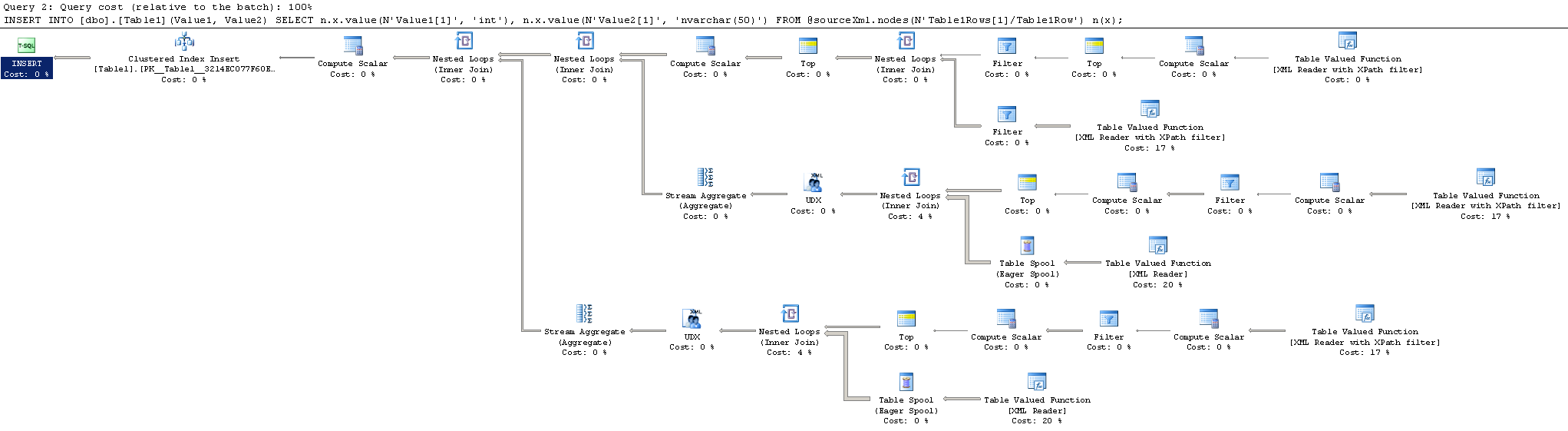
While the results on your machine will no doubt vary versus mine, my test on a 2008 R2 instance took about 3,100 milliseconds without using the XML Schema Collection, and about 280 ms with. This is a huge improvement! And we can see the difference in the query plans.

Before:

XSD Before

After:

XSD After

When I started using XML Schema Collections, I was only using them to strongly-type my XML, but it turns out that shredding XML can see a significant performance improvement as a side-effect. I read that strongly-typing XML slows down writes to XML variables, but I have yet to encounter a situation where that was necessary, or indeed, a good idea.

If you do start using XML Schema Collections in your own applications, I have a slight caution: you may want to avoid strongly typing parameters that are exposed in the database API (i.e., stored procedure parameters), even though it’s technically correct to construct the parameters that way. The reason why is that XML Schema Collections, once created, cannot be altered in-place (there is an ALTER XML SCHEMA COLLECTION, but it doesn’t do what you might expect). To change the definition, a collection must be dropped and recreated, which means that all objects with strong dependencies must be dropped and recreated as well. I think this is a royal pain — feel free to vote up the Connect feature request to add the expected functionality.

A workaround is to weakly type the API parameters, but immediately cast the parameter to a strongly-typed local variable in the procedure body, like so:

CREATE PROCEDURE [dbo].[Proc1](@p1 xml)
AS
BEGIN

	DECLARE @realP1 xml(MySchemaCollection) = @p1;
	
	...

 
From an API point of view, that’s not the best solution as the strong type isn’t exposed to the outside, but IMO, it’s a good enough tradeoff from a maintenance point of view, particularly if the Schema Collection is reused in many places.